> For the complete documentation index, see [llms.txt](https://docs.nosto.com/ugc/llms.txt). Markdown versions of documentation pages are available by appending `.md` to page URLs; this page is available as [Markdown](https://docs.nosto.com/ugc/guides/widgets-nextgen/widget-creation-guides/creating-your-own-widget-type-by-using-the-blank-canvas-widget.md).
# Creating your own widget type using blank canvas
* [Overview](#overview)
* [Step 1 - Getting a Canvas with Single Click!](#step1)
* [Step 2 - Super Simple Settings!](#step2)
* [Step 3 - Custom Code Editors](#step3)
* [Step 4 - Coding for Layout and Tile Templates](#step4)
* [Step 5 - Coding for CSS](#step5)
* [Step 6 - Coding for JavaScript](#step6)
* [Result - The Boilerplate Widget](#result)
* [Bonus - Creating the Horizontal Masonry Widget](#bonus)
{% hint style="warning" %}
You are reading the NextGen DocumentationYou are reading the **NextGen Documentation**
**NextGen widgets** are a new and improved way to display UGC content onsite.
From September 23rd 2025, all new widgets created will be NextGen.
Please check your widget version on the **Widget List page** to see if it is a **Classic** or **NextGen** widget.
You can read the [Classic Widget Documentation](/ugc/guides/widgets-nextgen/widget-creation-guides/creating-your-own-widget-type-by-using-the-blank-canvas-widget.md) here.
{% endhint %}
## Overview
Though Nosto's UGC provides several different types of widgets and has the great ability of customization, we still can't satisfy some of our customers' unique needs. For example, some customers want to use the [Horizontal Masonry](http://isotope.metafizzy.co/layout-modes/masonryhorizontal.html), which Nosto's UGC doesn't have. This then leads to our customer to using hack solutions or forces them to build from scratch which can take a lot of effort. That's not okay for both Nosto's UGC and our clients.
To resolve this, we have provided a new widget type. Blank Canvas allows you to create your widget from scratch whilst providing developers with some great utility functions and tools to achieve their solution efficiently.
In this tutorial, we will show you how to create a Blank Canvas widget step by step.
## Step 1 - Getting a Canvas with Single Click!

Once the widget is available to you, you will see an extra widget type, Blank Canvas, in your widget creation page.
It doesn't have any JavaScript, CSS, or HTML by default. That's the reason why you can only see the prompt text in the preview widget area.
Just click the **Create Widget** button to start! It's easy!!
## Step 2 - Super Simple Settings!

Before you start to put your imagination and innovative ideas onto the canvas, it's suggested to set up it correctly.
In Blank Canvas, we only provide very basic setting options. That is the Activate Widget, Name, Select Filter, and the Powered by Nosto's UGC Logo fields.
The **Selected Filter** is the most important setting among them. It involves with the data you can fetch from Nosto's UGC.
## Step 3 - Custom Code Editors

Unlike other widgets which have the CSS and JavaScript editors, the Blank Canvas widget provides the other **Layout** and **Tile** editors so that you can write code in [Mustache](https://mustache.github.io).
## Step 4 - Coding for Layout and Tile Templates
### Understanding the Mustache Partials
If you are familiar with the [Mustache](https://mustache.github.io) template engine, you probably know the [Partials](https://mustache.github.io/mustache.5.html#Partials). The Partials feature just makes it easier to **modulize your templates**.
Nosto's UGC introduces the Mustache Partials feature. You can add, remove, or rename any templates. **The only necessary one is the Layout**. You can remove the Tile template if you think you can finish everything in one template.
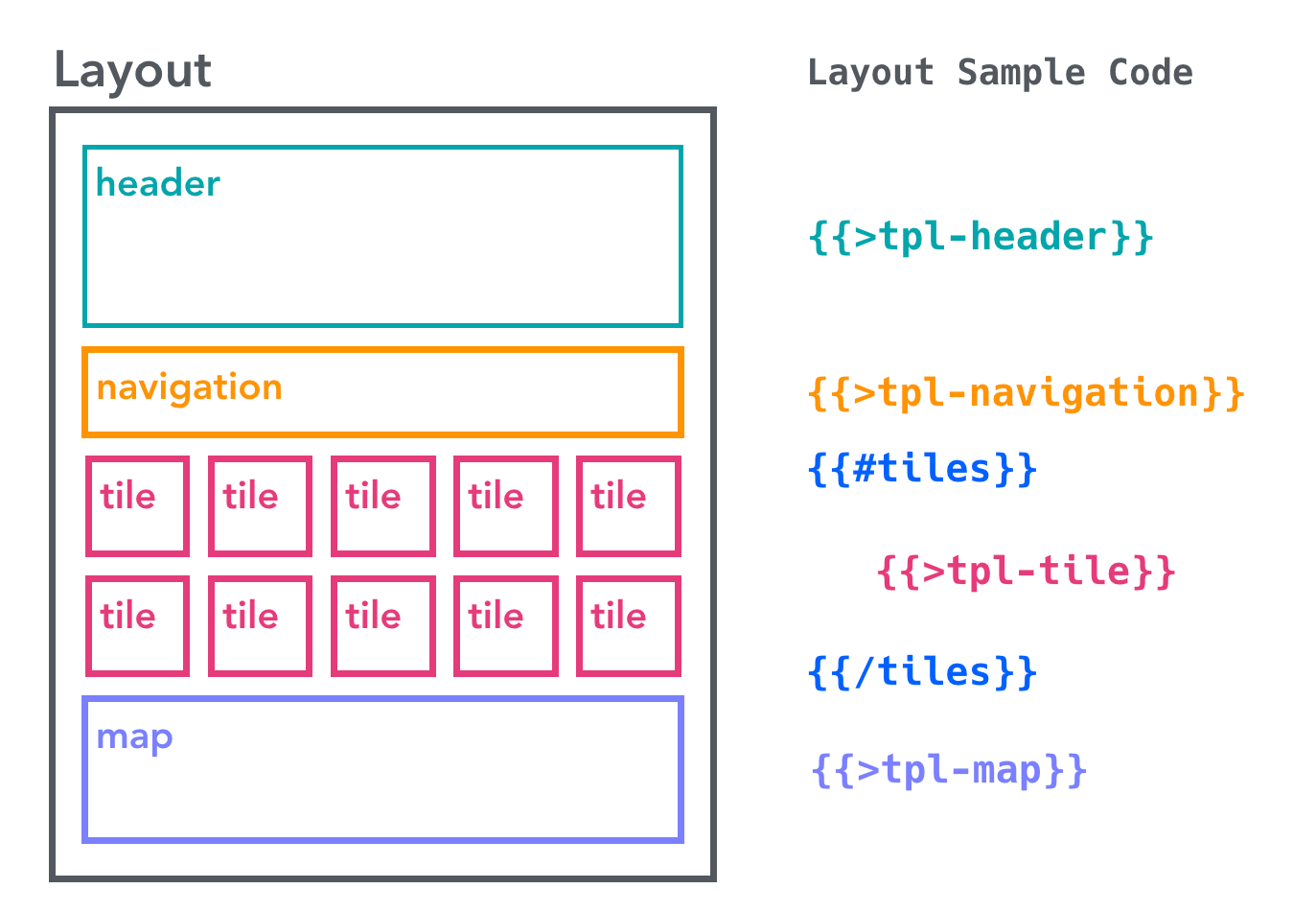
The above diagram illustrates the Layout template which includes Header, Navigation, Tile (inside the loop), and Map templates. We've created the following widget with this templates structure. See? You basically can create a micro-site with our Blank Canvas. Awesome right?
```html
```
Note the above example just demonstrates the ability to use multiple templates. There is no interaction between photos and map.
### Sample Code
You can copy and paste the following code as your boilerplate. Or you can just click the **Reset Code** link (at the top-right corner) to get them directly.

#### Layout
```
{{#tiles}}
{{>tpl-tile}}
{{/tiles}}
```
The following Tile template will be included by the **{{>tpl-tile}}** syntax. The **tiles** is an array collection containing tile objects. It must be prepared in the Custom JS Editor - which \[we will talk about later]\(#js-stackla.loadTilesByFilter).
#### Tile
```
{{#tile class="grid-item"}}
{{#each attrs}}
{{#ifequals this "instagram.reel"}}
{{/ifequals}}
{{/each}}
{{#ifHasProductTags this}}
{{/ifHasProductTags}}